Adding a Dell EqualLogic storage system
The system supports adding Dell EqualLogic external storage systems through iSCSI connections.
Unlike Storwize family systems, Dell EqualLogic systems have separate IQNs for each LUN on the storage system. Since the maximum number of iSCSI sessions is limited, only two nodes in a single I/O group can connect to the Dell storage system. Therefore, connections to these storage systems must be configured for a single I/O group, even if there is more than one I/O group on the system.
Also, unlike Storwize family systems, you connect each iSCSI initiator (node) to one array port per volume. With Dell EqualLogic systems, the recommendation is to complete all SendTargets discovery and session establishment to the group IP address only. Load balancing across target arrays and array ports is achieved by Dell EqualLogic by using login redirection.
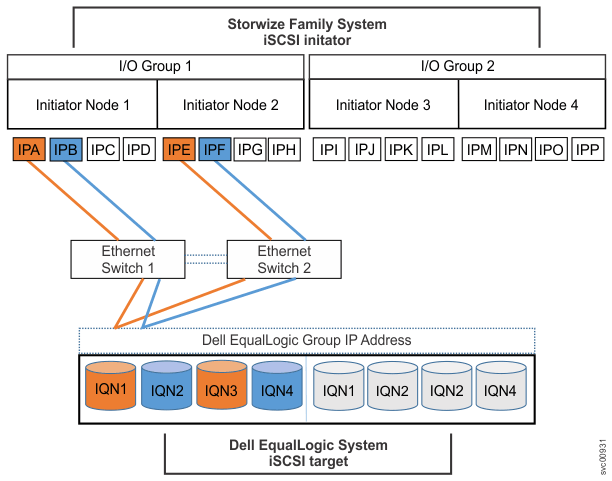
The graphic describes the connection between the system and a Dell EqualLogic storage system. In this diagram, the system is composed of two I/O groups with two nodes. Each node has a maximum of four initiator ports with two configured through two switches to the target ports on the storage systems. The other two ports on each node are not configured. The first port (IPA) and second port (IPB) on node 1 are connected through Ethernet switch 1. The first port (IPE) and second port (IPF) on node 2 are connected through Ethernet switch 2. With Storwize family systems, switches are isolated for high availability, but in Dell EqualLogic configurations, the Ethernet switches support inter-switch communication. Both pairs of connections are directed through the group IP address for the Dell EqualLogic storage system.
Before configuring a Dell EqualLogic storage system, ensure that you complete these prerequisites:
- Configure the Dell EqualLogic array and switched connectivity to the Dell EqualLogic storage system by following the instructions in the Dell Configuration Guide.
- Identify the I/O group whose nodes will discover and connect to the Dell EqualLogic storage system.
- Understand the number of source ports per initiator node that must be used for connectivity to the target Dell EqualLogic storage system.
- Understand the maximum number of volumes or LUNs (represented by IQN) that are to be managed by the initiator.
- If x is the number of source ports to be used for connectivity to Dell EqualLogic and y is the number of Dell EqualLogic volumes (IQNs) to be managed by the initiator nodes, then for load balancing, the number of LUNs that should be connected per initiator storage enabled Ethernet port is z = y/x.
To add a Dell EqualLogic storage system, complete these steps:
- Select Dell for the type of external storage.
- Enter the following values to define the connection between the source ports and the target
ports on the external storage:
- I/O Group
- Select the I/O group where the source ports are on the system. Only source ports in the nodes of the specified I/O group discover target ports on external storage.
- Target port on remote storage
- Group IP address for the Dell EqualLogic array that receives the request from source ports in the specified I/O group.
- User name
- Enter the user name to associate with this connection.
- CHAP secret
- If CHAP is used to secure iSCSI connections on the system, enter the current CHAP secret. This field is not required.
- Site
- Specify the site that this storage system is associated with. Note: The storage system must be associated with a site in systems with HyperSwap configurations. The site is required for systems that use HyperSwap configurations.
- Source port 1
- Enter the first source port ID that is used as the initiator for the iSCSI connection between the node and the storage system.
- Source port 2
- Enter the second source port ID that is used as the initiator for the iSCSI connection between the node and the storage system.
- Site
- Specify the site that this storage system is associated with. Note: The storage system must be associated with a site in systems with HyperSwap configurations. The site is required for systems that use HyperSwap configurations.
- Click Next.
- From the list of available IQNs, select the IQNs that appear as MDisks to the system.
- Click Add.